How Do Turbo Exhaust Graphics Cards Work? Essential Guide
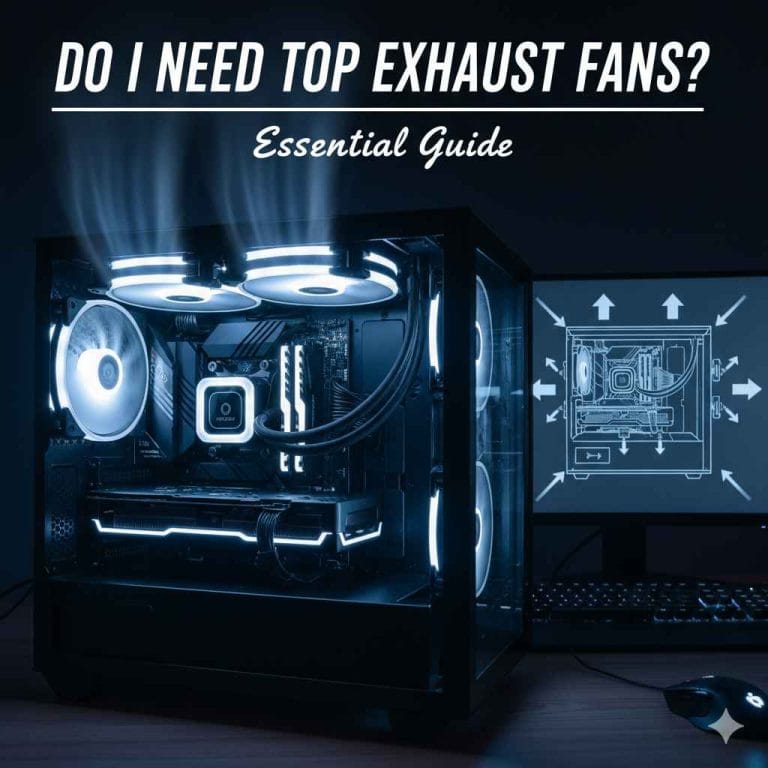
Turbo exhaust graphics cards use dedicated cooling fans, often mounted vertically or in a blower style, to directly pull hot air out of the PC case through the rear I/O bracket, offering excellent case airflow management compared to standard open-air coolers.

Bornffinally
Bornffinally MAXSUN Intel Arc Pro B60 Dual…
- DUAL-GPU DESIGN: Features two Intel Arc Pro B60 GPUs working in tandem to deliver exceptional parallel processing power for demand…
- 48GB GDDR VRAM: Massive 48GB of dedicated graphics memory provides ample headroom for large-scale rendering, AI inference, and com…
- DUAL-SLOT FORM FACTOR: Compact dual-slot design fits neatly into standard PCIe slots without monopolizing your entire motherboard'…
As an Amazon Associate I earn from qualifying purchases.
The Mystery of Turbo Exhaust: What Are They and Why Should You Care?
Ever looked at a graphics card and thought, “That looks different”? You might have spotted a “turbo” or “blower-style” cooler. These cards look a bit like miniature jet engines, and they handle heat in a completely unique way compared to the big, open-fang cards you usually see. For beginners, understanding this difference is huge, especially when building a small PC or battling high temperatures.
Many people use standard graphics cards that blow warm air inside your computer case. If your case airflow isn’t perfect, that hot air just bounces around, making everything hotter! Exhaust cards are designed to solve this exact problem. They are essential if you are upgrading an older case or building in a tight Mini-ITX setup where space is seriously limited.
Don’t worry about complicated engineering terms. We are going to break down exactly how these turbo exhaust graphics cards work, why they are sometimes better, and when you should choose them over the flashy open-air fans. By the end of this guide, you will feel confident knowing if a turbo card is the right fit for your gaming rig or workstation. Let’s jump into the engine room of great cooling!
Understanding Standard vs. Turbo Exhaust Cooling
To truly appreciate how a turbo exhaust card works, we first need a quick look at its common counterpart: the open-air cooler. Most GPUs today use this style.
The Standard “Open-Air” Cooler
Think of a standard aftermarket GPU cooler. It usually has two or three large fans sitting directly on top of a big heatsink.
These fans are excellent at moving a lot of air, but they don’t direct where that air goes. They push cool air down onto the heatsink fins, absorb the heat, and then dump that hot air directly into the interior of your PC case. It relies heavily on your case fans (front intake and rear/top exhaust) to clean out the hot air quickly.
The “Turbo” or “Blower-Style” Cooler
The turbo cooler does things differently. Instead of multiple small fans blowing down, it uses one, sometimes two, tightly enclosed fans—often called a centrifugal or “blower” fan—that sit next to the card’s shroud.
This design pulls air from the top side of the card and forcefully pushes it out the side of the computer case, usually right near the metal plate where your video ports (HDMI, DisplayPort) are located. This is why they are called “exhaust” coolers—they exhaust the heat immediately outside the main case area.

How Do Turbo Exhaust Graphics Cards Work: The Mechanics Explained
The core concept behind a turbo exhaust card is simple: containment and direction. Instead of relying on the existing case fans to manage the GPU heat, the card handles its own exhaust process.
The Blower Fan Design
The key component is the blower fan. This fan works like a small vacuum cleaner or hairdryer, drawing air in from one area and expelling it out under pressure in another direction.
- Air Intake: Cool air is pulled from inside the PC case, usually across the entire length of the GPU heatsink.
- Heat Transfer: The air passes through the heatsink fins, absorbing the heat generated by the GPU chip and memory modules.
- Forced Exhaust: The blower spins rapidly, pressurizing the heated air and forcing it through a narrow duct or housing.
- Case Ejection: The final exit point is usually right at the rear end of the graphics card, where the air is dumped straight out the Metal I/O bracket area of your computer tower.
This process means the heat generated by the GPU chip doesn’t linger inside the chassis. It gets removed right away, which is a massive benefit in compact systems.
The Role of the Shroud and Backplate
The outer shell, or shroud, is crucial for a turbo cooler. Unlike open-air coolers where the fans are exposed, the blower shroud fully encloses the fan and creates an air channel.
The backplate on these cards often plays a secondary role in heat management, sometimes having thermal pads touching VRMs or memory chips on the backside, helping to transfer that heat to the cooler structure itself, which is then blown out.
Why Choose a Turbo Exhaust Card? The Performance Perks
When should you, the driver of your PC build, choose a turbo card over a flashier triple-fan model? It usually comes down to airflow management within the case environment.
Pros of Turbo Exhaust Cooling
These cards offer distinct advantages in specific scenarios where heat management is tricky:
- Superior Case Airflow Management: This is the number one reason. Since hot air is ejected immediately, other components (like the CPU, RAM, and motherboard VRMs) benefit from cooler ambient temperatures inside the case.
- Ideal for Small Form Factor (SFF) Builds: In tight Mini-ITX cases or HTPCs (Home Theater PCs) that lack space for large air paths, a blower card guarantees that its own heat leaves quickly without suffocating its neighbors.
- Multi-GPU Setups (SLI/CrossFire): When installing two or more large graphics cards close together, the lower card often suffocates because the top card blocks incoming air. Blower cards help mitigate this by exhausting their own heat immediately.
- Uniform Interior Look: For those who prefer a cleaner, more uniform look inside the case, the single-fan, sleek design can be visually preferable to large, colorful open-air coolers.
When Turbo Coolers Might Fall Short
No design is perfect. Here are the trade-offs you should know about before making your purchase:
| Factor | Turbo Exhaust Card | Standard Open-Air Card |
|---|---|---|
| Noise Level (Under Load) | Can be louder because the blower has to spin faster to push air through the restricted path. | Often quieter, moving high volumes of air at lower RPMs. |
| Max Cooling Potential | Generally slightly lower maximum thermal headroom. | Typically offers better raw cooling potential for extreme overclocking. |
| Case Dependency | Less dependent on the case’s existing fan configuration. | Highly dependent on good case airflow to expel its dumped heat. |
If you look at the raw cooling capacity, open-air coolers often win because they move a higher volume of air across the fins. However, the turbo style wins on efficiency of removal from the case environment. For more general information on computer cooling best practices, checking resources like those provided by engineering centers can offer deep dives into thermal dynamics, though we are keeping this guide focused on practical application for your car, er, computer!
Installation Considerations for Blower-Style Cards
Installing a turbo exhaust card is physically similar to installing any other GPU, but you need to pay special attention to the exhaust path once it’s inside the case.
What Tools Might You Need?
Before you start wrenching on your build, make sure you have the basics ready. Safety first—always unplug the power supply before opening the case!
- Phillips Head Screwdriver (Magnetic tip is a huge help!)
- Anti-static wrist strap (Recommended for all component handling)
- Your new Turbo Exhaust GPU
- Your PC Case Manual (To locate PCIe slot retainer clips)
Step-by-Step Guide to Installation
Follow these steps carefully to ensure your new high-performance card seats correctly and your system can breathe:
- Power Down and Unplug: Turn off the PC completely and switch off the power supply unit (PSU) located on the back of the case. Unplug the main power cord.
- Ground Yourself: Put on your anti-static wrist strap, clipping the tether to an unpainted metal part of the chassis.
- Open the Case: Remove the side panel(s) giving you access to the motherboard.
- Locate the Slot: Identify the primary PCIe x16 slot (usually the uppermost, longest slot, often reinforced).
- Remove Slot Covers: Unscrew and remove the metal slot covers at the very back of the case corresponding to where the graphics ports will sit. Turbo cards only require one or two slots of clearance for their exhaust port.
- Insert GPU: Align the gold contacts of the GPU carefully with the motherboard slot. Press down firmly and evenly until you hear a distinct “click” from the retaining clip locking the card in place.
- Secure the Card: Screw the rear mounting bracket of the graphics card securely into the case frame using the screws you removed in Step 4.
- Connect Power: Plug in the required PCIe power connectors from your PSU into the side or top of the graphics card. Do not forget this step!
- Close Up and Test: Reattach the side panel, plug in the power, and boot up. Monitor temperatures immediately using software like HWMonitor or your GPU manufacturer’s utility.
A quick tip: Because blower cards often exhaust heat directly against another case panel or component, check the manufacturer’s recommended clearances. You want that hot air to flow directly out, not get immediately redirected onto your CPU cooler.
Optimizing Case Airflow for Turbo Cooling Success
Even though turbo cards are designed to be self-sufficient, they still suck air from inside the case. If the case doesn’t replace that air constantly, the card will eventually just be re-circulating slightly cooler air, leading to performance throttling.
The Three Rules of Case Air Exchange
To keep your turbo card happy and cool, focus on maintaining positive or neutral air pressure inside the case.
1. Intake is King
You must have enough cool air constantly rushing into the case to feed the GPU blower fan.
- Ensure front and bottom fan mounts are dedicated to cool air intake.
- If possible, use filtered intakes to keep dust out of your card’s sensitive fins.
2. Exhaust Must Be Clear
The path for the hot air to leave the case via the GPU’s exit point must be clear.
Don’t let cables or drives block the I/O area where the blower pushes air out. While the air is exiting the case, it needs a straight path to the outside environment.
3. CPU Cooling Synergy
Your CPU cooler needs to work with the GPU, not against it.
If you have a large air cooler for your CPU, ensure it’s oriented to blow air towards the rear or top exhaust fan of the case. This helps sweep up any residual heat that the GPU didn’t catch and pushes it out, creating a clean channel for the GPU’s input air.
Comparing Cooling Strategies: A Quick Look
Understanding the interplay between the turbo card and the overall system helps optimize performance.
| Strategy | Effect on Turbo Card | Best For |
|---|---|---|
| Positive Pressure (More Intake) | Ensures a steady stream of cool air is available for the blower to ingest. | Dust-sensitive environments or high-load situations. |
| Negative Pressure (More Exhaust) | Can slightly reduce inlet air temperature if system exhaust fans are strong, but risks sucking dust through every crack. | Cases with very limited intake fan mounts. |
| Neutral Pressure | Balanced cooling where intake equals exhaust; reliable for most normal desk setups. | General purpose, balanced mid-towers. |
Maintenance: Keeping Your Turbo Cooler Spinning Smoothly
A blower fan design means all the dust and debris it pulls out of the case is shoved directly into the fan housing. Regular maintenance is non-negotiable for longevity and performance.
Cleaning the Blower Mechanism—A Beginner’s Guide
Unlike large open-air fans where you can often see and wipe the blades easily, blower fans are enclosed, making cleaning trickier.
- Safety First: Power down, unplug, and ground yourself (as in the installation steps above).
- Access the Shroud: Depending on your specific card model (NVIDIA Founders Edition vs. AIB Partner card), you might need to gently check if the shroud screws allow removal. If the shroud is not easily designed for user removal (check the card warranty first!), proceed to step 4.
- Dust Removal (External Access): Use a can of compressed air. Aim the nozzle directly at the exhaust vent at the rear of the card. Blow short, controlled bursts to dislodge trapped dust towards the intake side.
- Dust Removal (Internal Access): If you removed the shroud, carefully use compressed air to blow dust off the fan blades and the underlying heatsink fins. Hold the fan stationary with a finger or cotton swab while blowing air to prevent it from spinning too fast, which can damage the bearings.
- Software Monitoring: After reassembly, run a demanding game or benchmark for ten minutes. Use your monitoring app to ensure the temperatures are immediately lower than before cleaning.
Noise Issues and Bearing Wear
Turbo fans often use smaller bearings, which can wear out quicker than the larger, fluid dynamic bearings found in some high-end open-air models.
If you start hearing a high-pitched whine or rattling noise coming specifically from the rear of the card when under load, it’s a warning sign that the blower fan bearings are failing. Unfortunately, unlike some standard GPU fans that are easy to replace with aftermarket options, replacing a blower fan often requires specialized parts or sending the card in for service, or looking up specific guides for that GPU model on reputable hardware forums.

Common Questions About Turbo Exhaust Graphics Cards
Here are some popular questions beginners have when first encountering this style of cooling solution.
Q1: Are turbo exhaust cards always less powerful than my old card?
No, not at all. A card’s power is determined by its core chip (like an RTX 4070). The cooling style only determines how well it manages the heat that chip produces. A turbo 4070 is still a 4070; it just cools itself by blowing heat out the back.
Q2: Should I buy a turbo card if I have a huge case with great airflow?
Probably not, unless you have specific clearance issues for a secondary card. In a large case, the superior raw cooling power and lower noise profile of a standard open-air cooler will usually serve you better.
Q3: Will a turbo card work if I don’t have any exhaust fans in my case?
It will function, but it will run very hot quickly. The turbo card exhausts heat into the case cavity near the I/O bracket. If the case has no way to push that hot air out, the GPU will starve for cool air, and performance will suffer. Good case exhaust is still vital.
Q4: Do blower-style cards need more space at the rear of the PC?
Yes, they need a clear path directly behind the card. If you have a wall right behind your PC, the air builds up. Ideally, you want several inches of clear space behind the tower for the exhausted air to dissipate effectively.
Q5: Are these cards only made by specific companies?
Historically, founder’s edition cards (like early NVIDIA reference designs) and some professional workstation cards heavily favored this cooling style. Today, many custom partners (like ASUS or MSI) offer blower models for specific product lines aimed at SFF builds or specialized industrial applications.
Q6: How do I know if my new card is a turbo model?
Look at the cooler design. If the side profile shows a solid shroud with vents only at the very end where the ports are located (and no open fan blades visible on the top side), it is a turbo/blower design. Always check the product photos carefully before ordering.
The Final Word on Turbo Exhaust Cooling
You’ve successfully navigated the world of high-performance GPU cooling! Understanding “how do Turbo Exhaust graphics cards work” boils down to one simple principle: directional heat management. These cards are brilliant engineers of efficiency in tight spots.
If you are building a compact PC, wrestling with an older case that lacks modern flow dynamics, or stacking multiple GPUs, the turbo exhaust card is your trusted ally. It sacrifices a bit of raw cooling potential and sometimes adds a touch more fan noise to ensure the rest of your components stay comfortable by guaranteeing its own hot air leaves the premises immediately.
Remember the key takeaways: they use a blower fan to push air out the back, they shine in small cases, and they still need decent overall case ventilation to feed them cool intake air. By respecting the air path and performing simple, regular cleanings, your turbo card will keep delivering reliable, stable performance, letting you focus on the games and tasks you built your machine for. Happy computing, and may your temps always run low!
Related pick: Check today's price on Amazon